Tutorial for Let's Constellate
How to run a constellation session: the board, representatives, Tools, Notes, snapshots, and shortcuts.
1. Start a session
Register and log in with your email.
Choose the plan that is right for you and follow the steps.
- Free — gives you 40 minutes.
- Flex — $2.99 gives 2 hrs.
- Pro — $12.99 monthly for unlimited use.
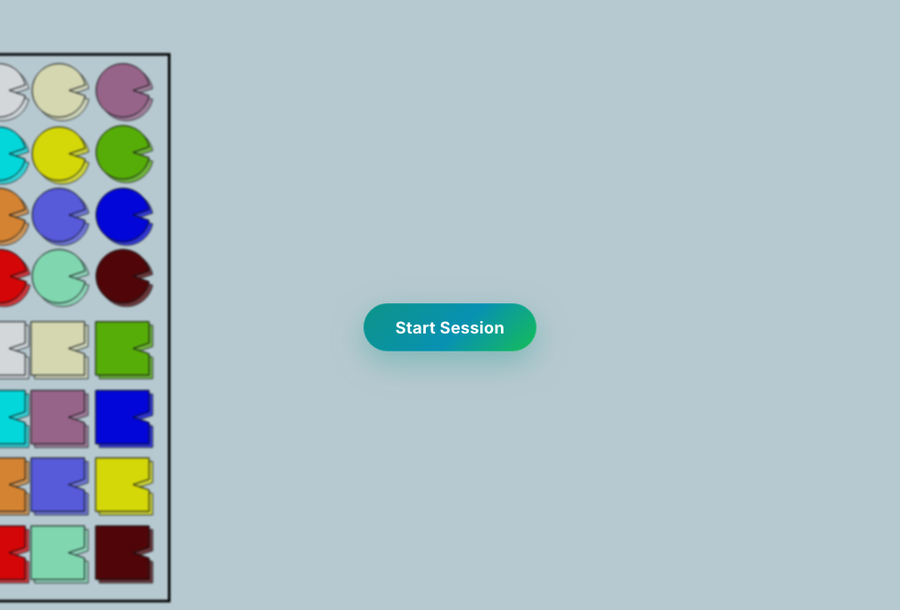
After choosing a plan press Enter a Constellation Session and Start Session. Board tools are the same on every plan — only session time differs.
2. Session navbar





3. Working with Reps (Representations Icons)
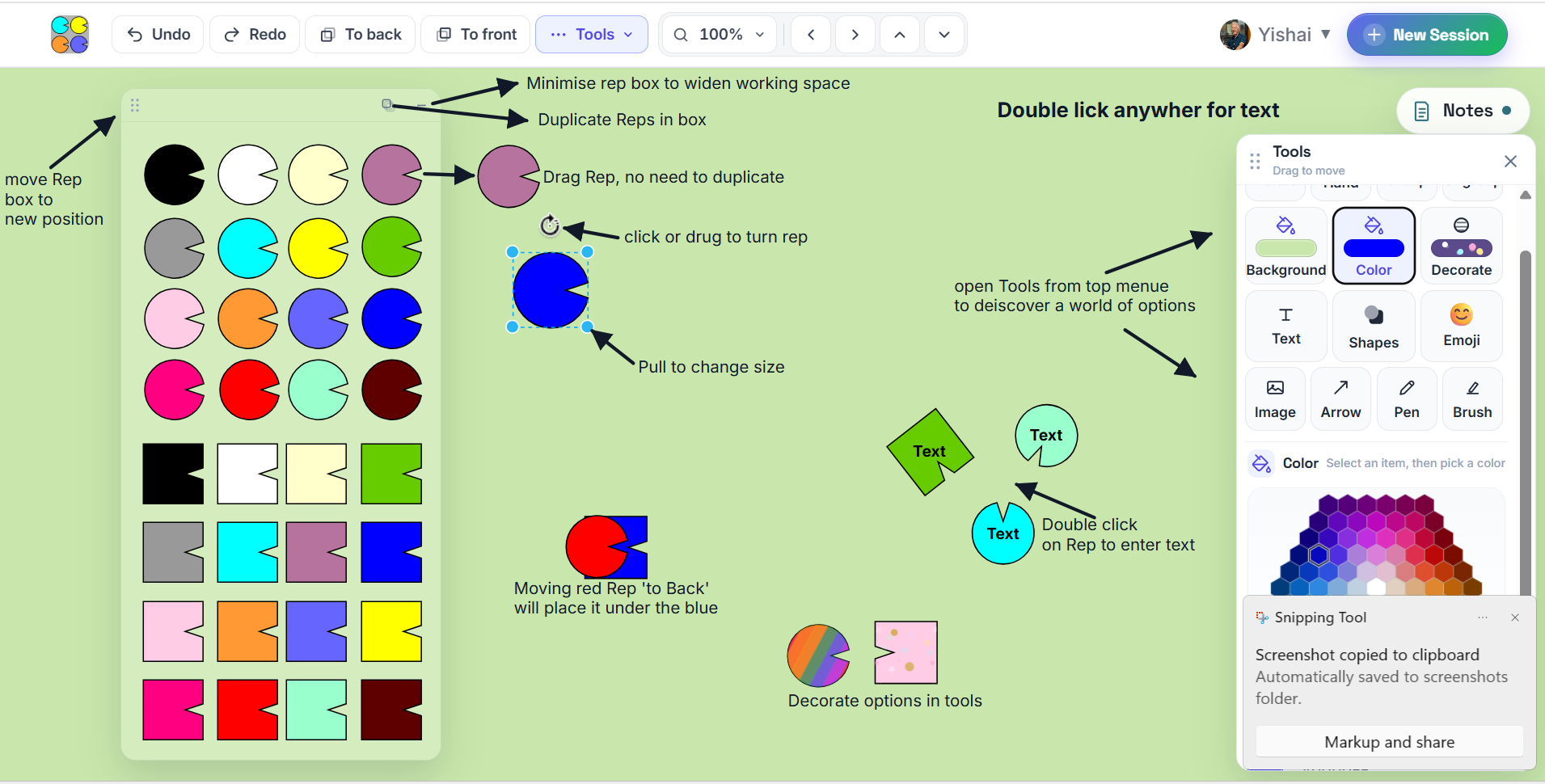
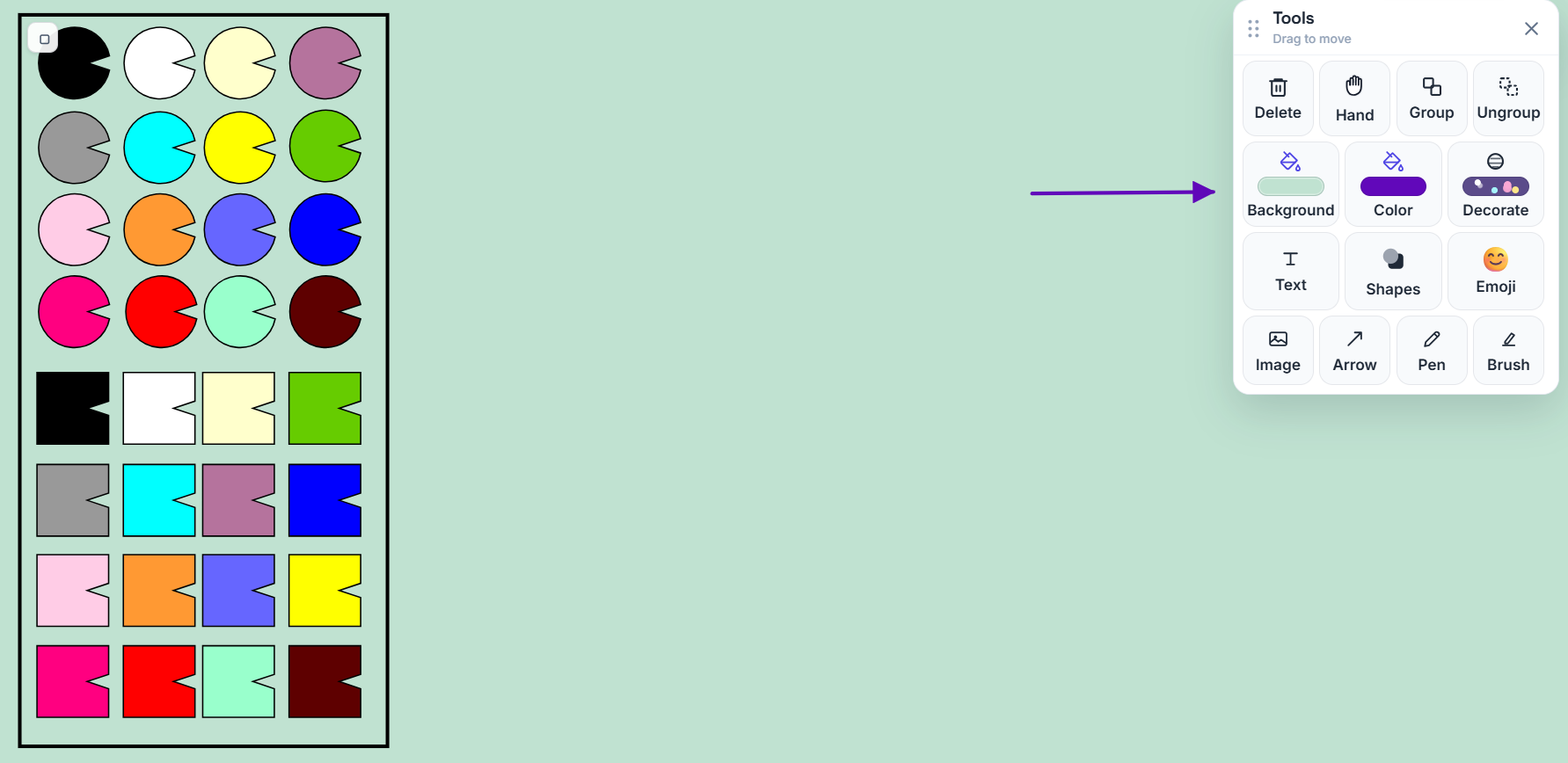
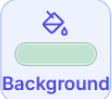
Select board color
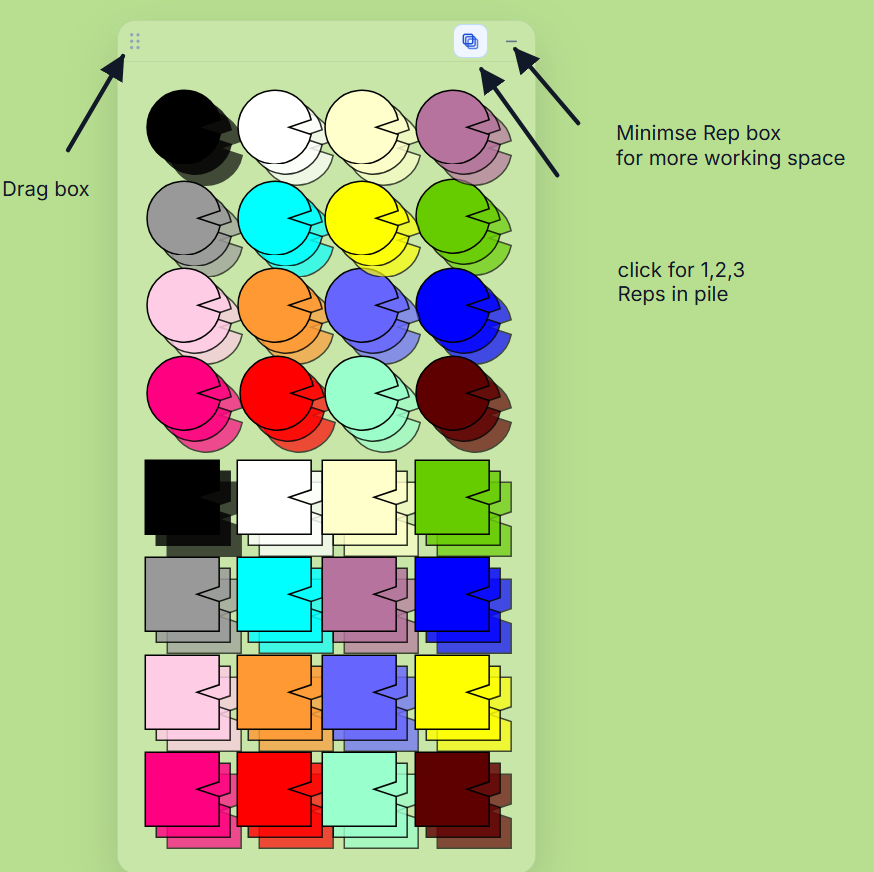
Reps box
Select how many Reps duplicates (1, 2 or 3) in the Rep box by clicking on the duplicate button (Reps replenish automatically). Minimise Rep box. Drag Rep box to different positions on board.
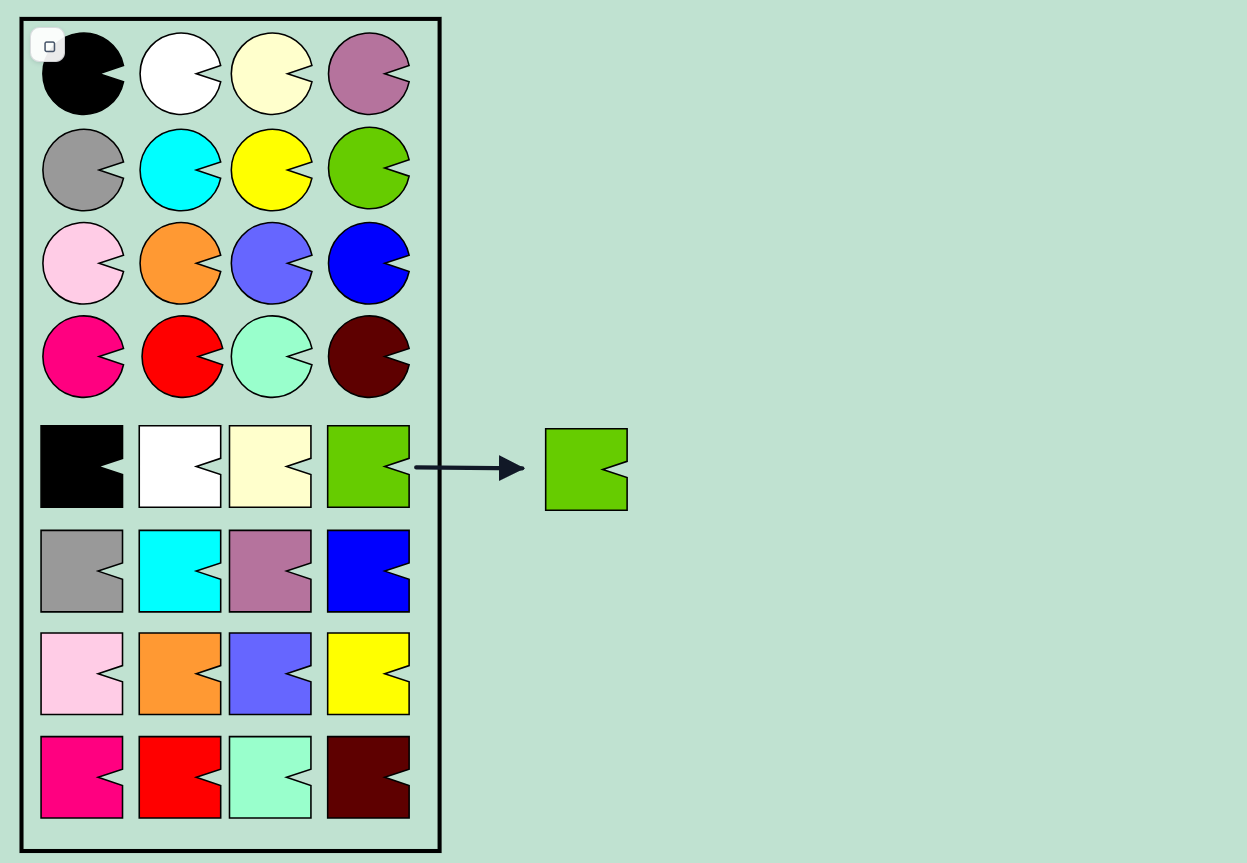
Click and drag a Rep from box to board
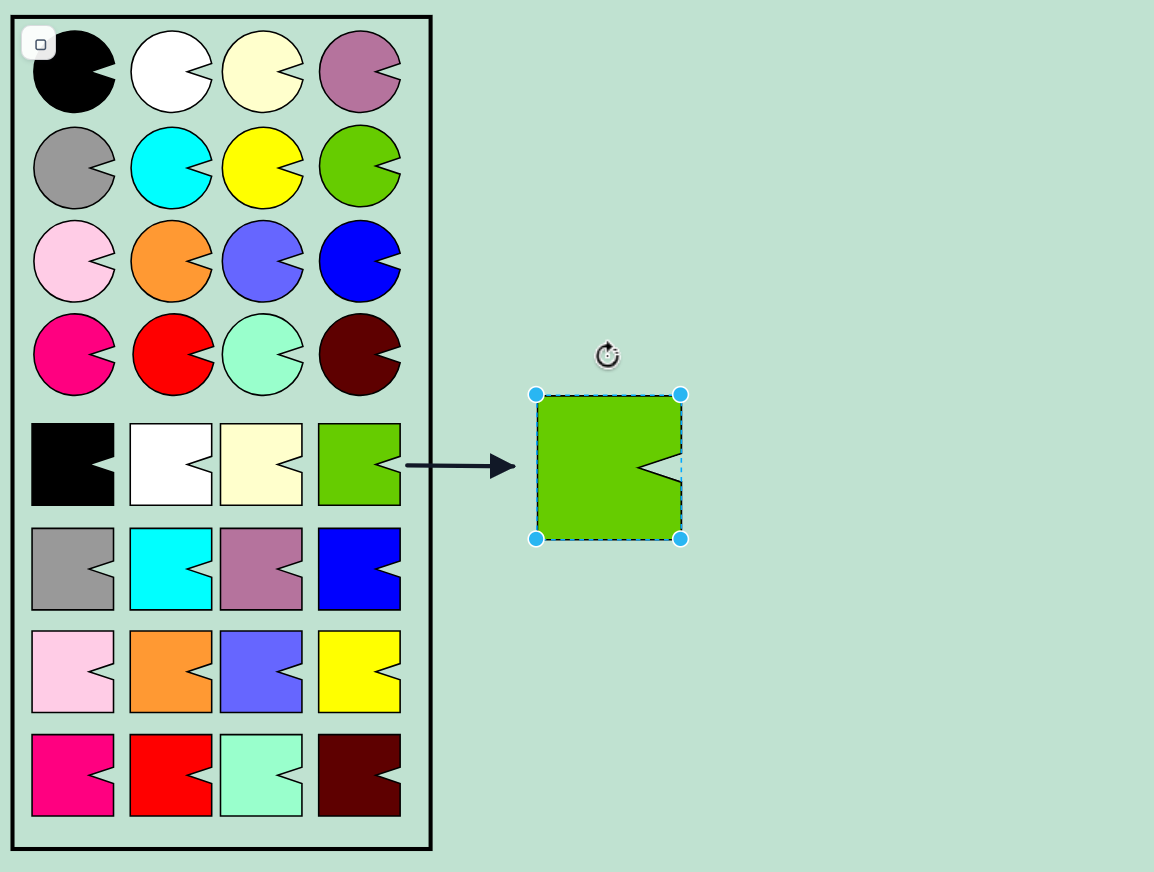
Change Rep size
Change Rep size by dragging the blue spot:
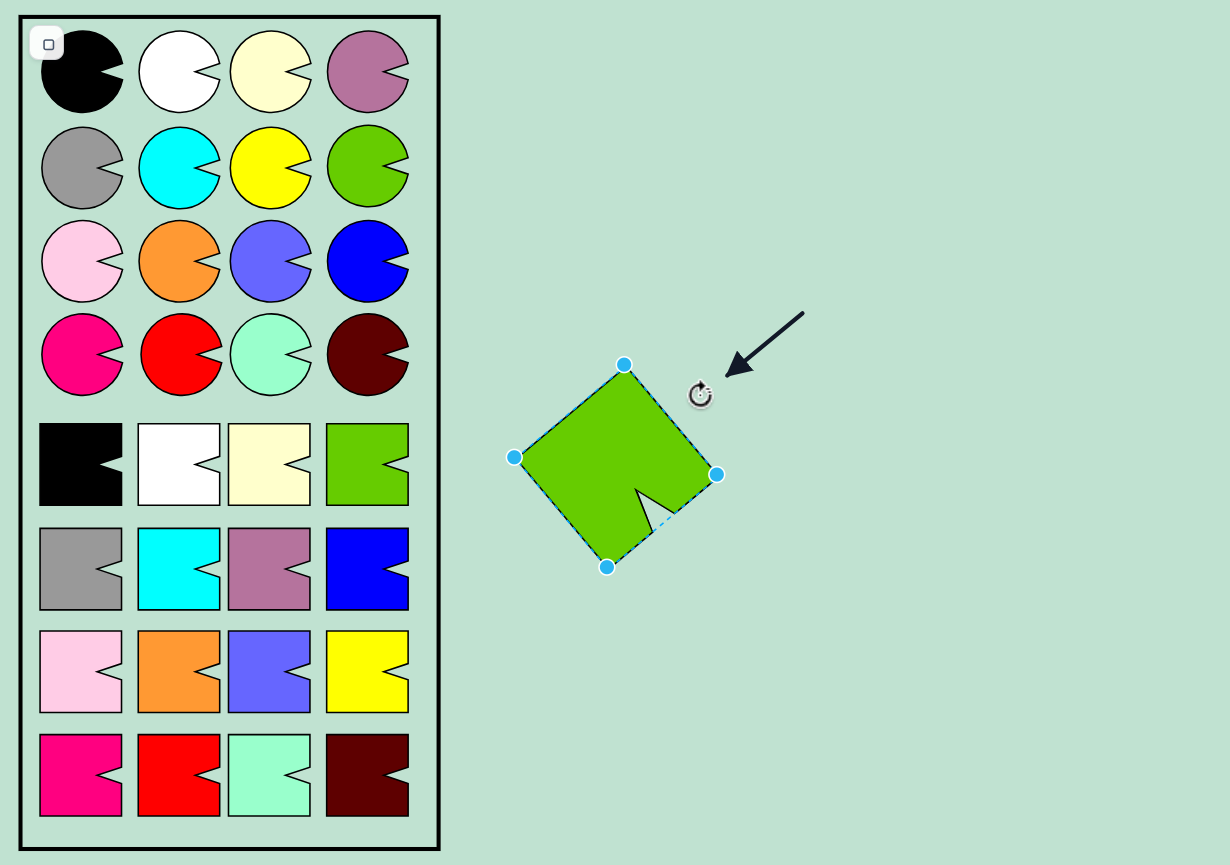
Turn Rep
Turn Rep by dragging or clicking the top round arrow:
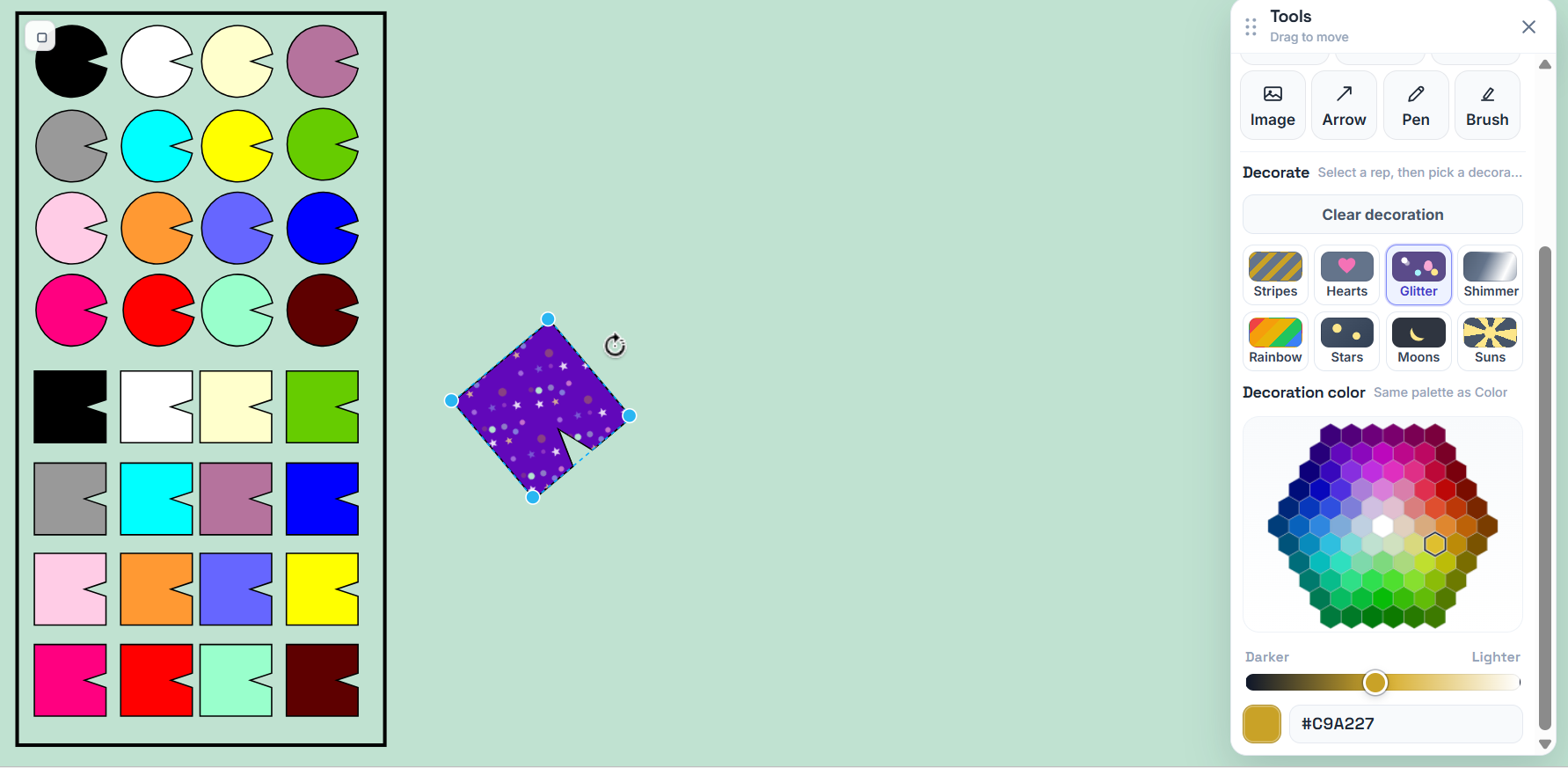
Change Rep color or decorate
Change Rep color or decorate it by clicking on Rep and opening tool box:
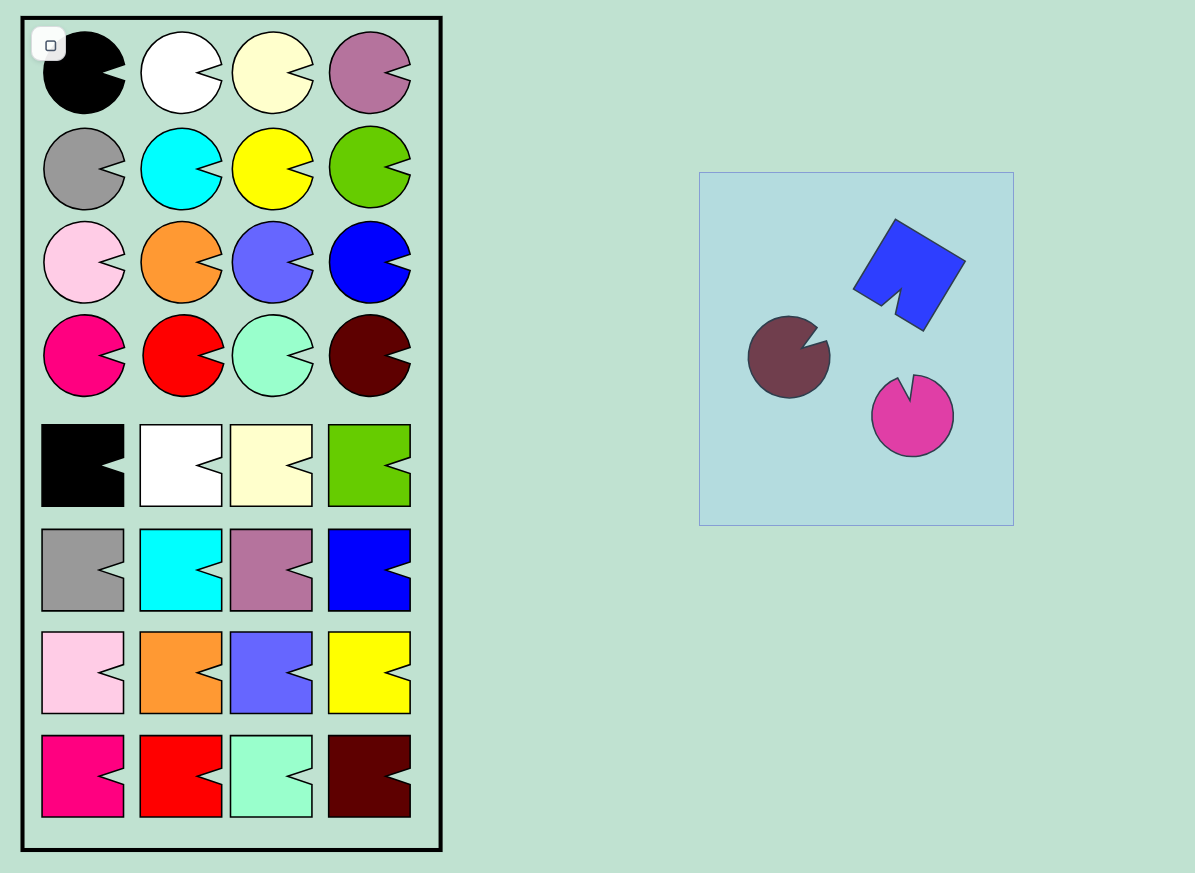
Group & Ungroup
Group reps by highlighting a group (dragging the hand cursor over them), and in the right click menu click Group or Ungroup:
Write name on Rep
Write name on Rep by double clicking on the rep:
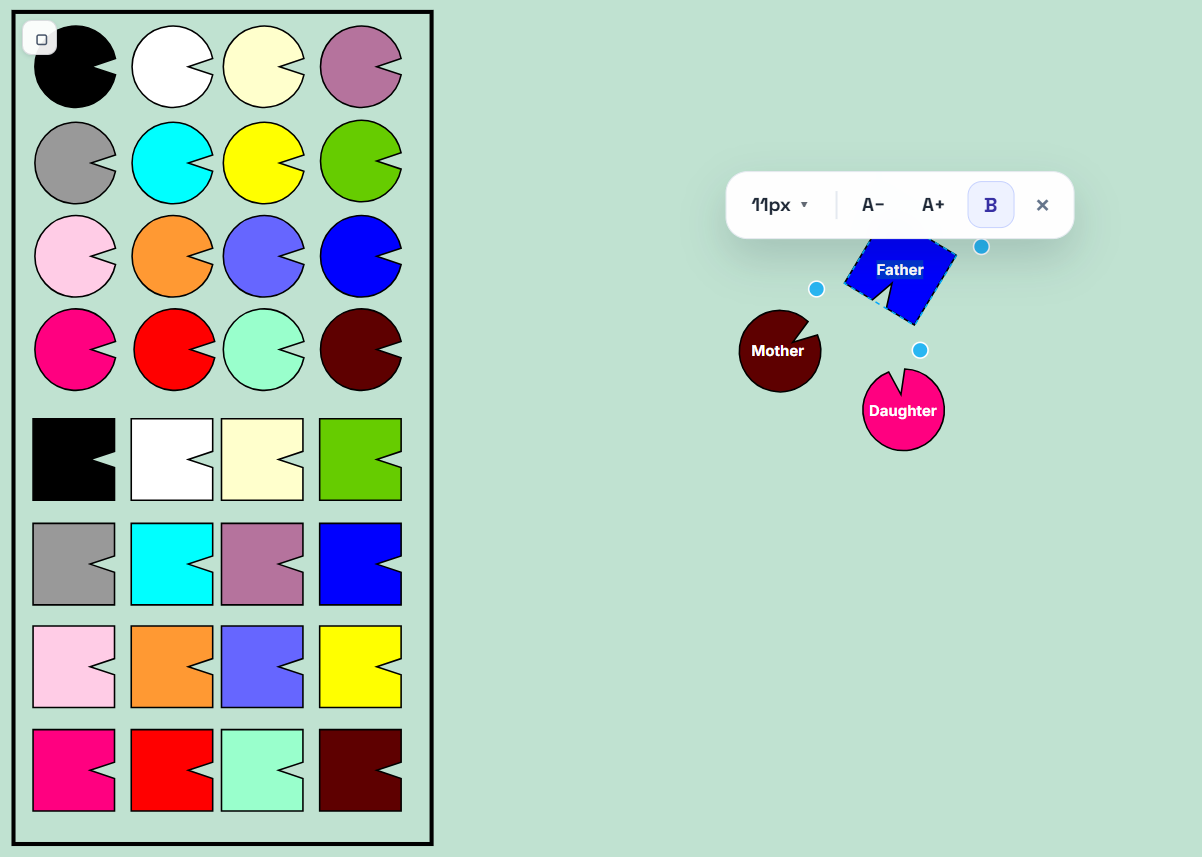
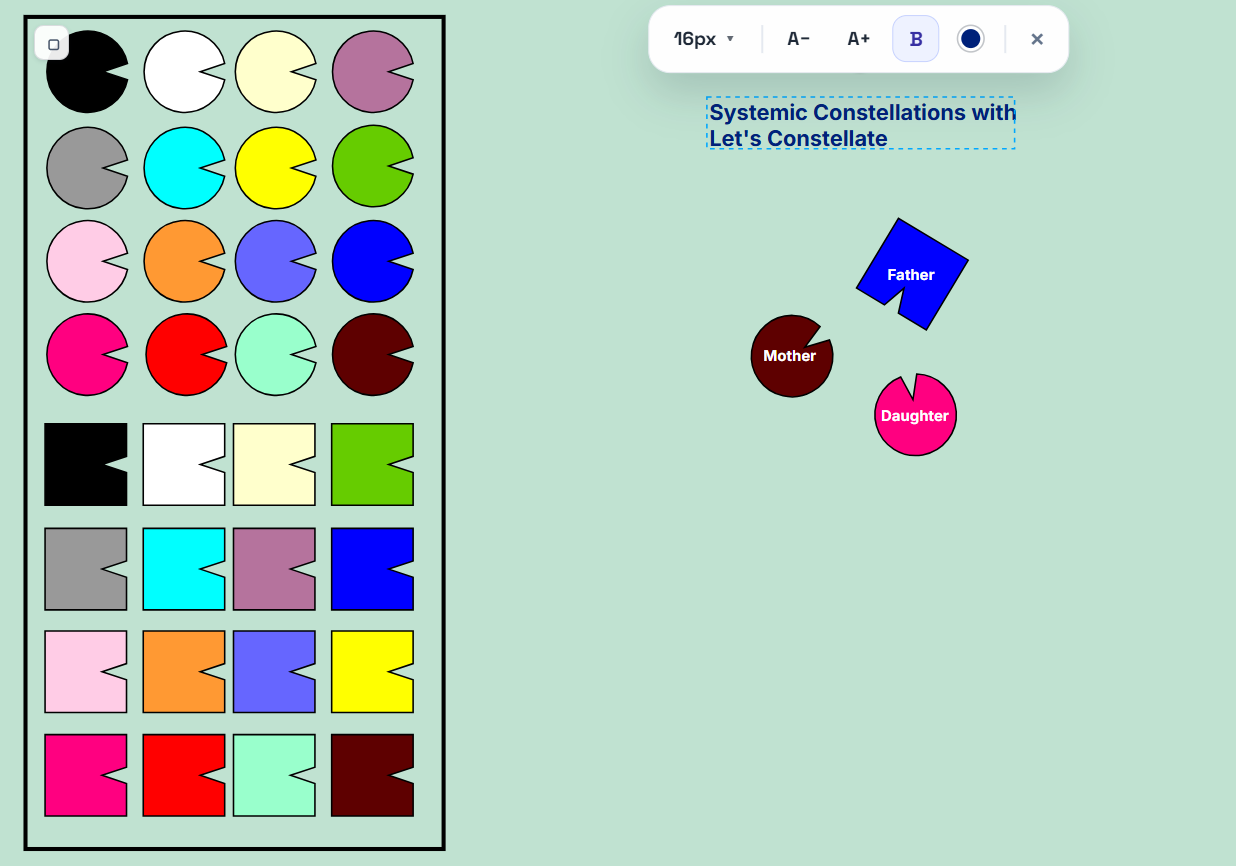
Board text
Click anywhere on the board to enter text:
4. Tools
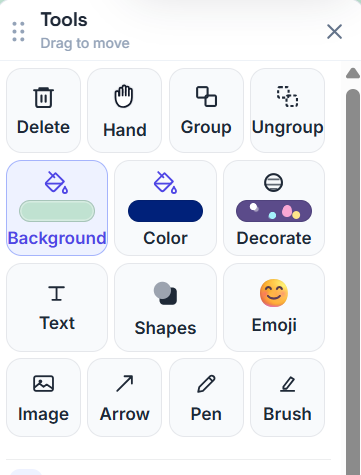
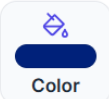
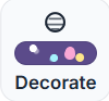
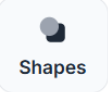
Click on Tools in the Nav bar for these options:







5. Notes & Session Snapshot
Take notes and snap shot of session, save to client’s file

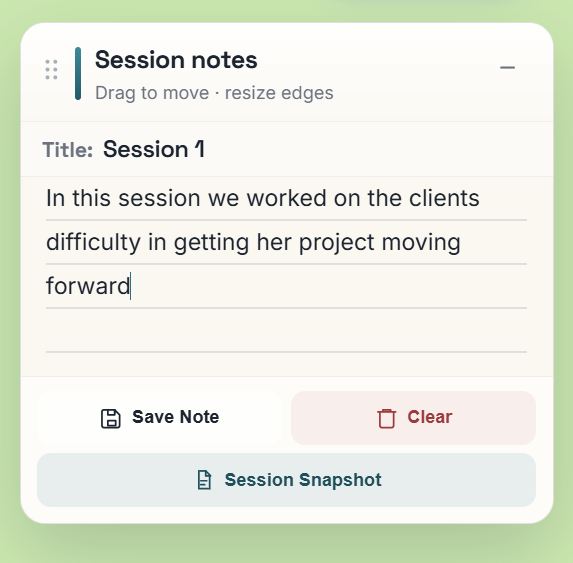
- At any point during the session you can save notes and a snapshot of the board to your file.
- Snapshots can be saved in PDF or JPG.
6. Keyboard shortcuts
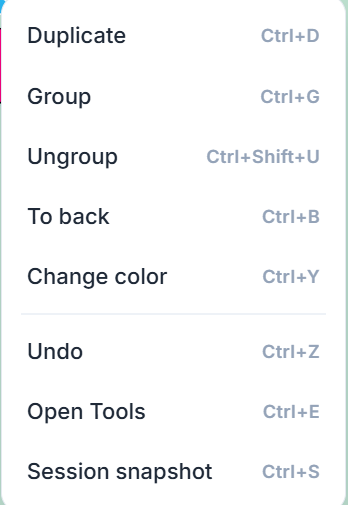
Same actions appear in the board right-click menu (Mac or Windows labels).
| Action | Windows / Linux | Mac |
|---|---|---|
| Duplicate | Ctrl + D | ⌘ + D |
| Undo | Ctrl + Z | ⌘ + Z |
| Group | Ctrl + G | ⌘ + G |
| Ungroup | Ctrl + Shift + U | ⌘ + Shift + U |
| Send to back | Ctrl + B | ⌘ + B |
| Change rep color | Ctrl + Y | ⌘ + Y |
| Open Tools | Ctrl + E | ⌘ + E |
| Session snapshot | Ctrl + S | ⌘ + S |
7. Video walkthrough
Full product tour (coming soon).
We’ll embed the walkthrough here (YouTube or Vimeo). Until then, use the sections above.
Questions? lets.constellate.online@gmail.com